
To convert a custom head into a MetaHuman DNA with the Converter, your mesh must share the MetaHuman topology and UV layout. Wrapping is how you get there: you deform a copy of the base MetaHuman head and body meshes so they conform to your scan, sculpt, or alternative topology.
Why Wrap?
The DNA auto-fitting algorithm is UV based. It only produces a correct fit when your mesh uses the base MetaHuman UV layout with no overlapping or extra islands, or distorted points.
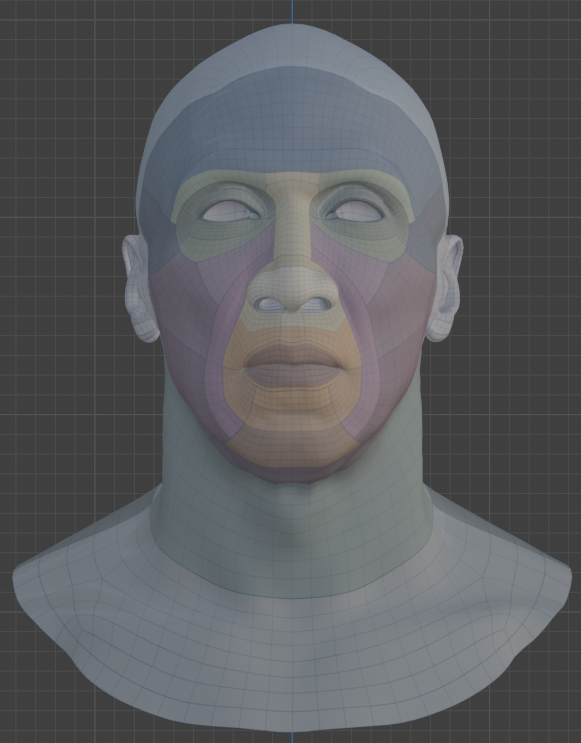
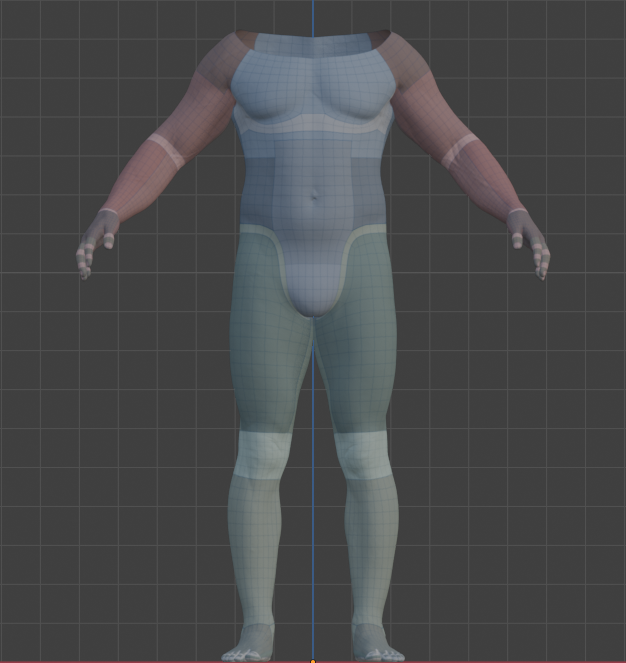
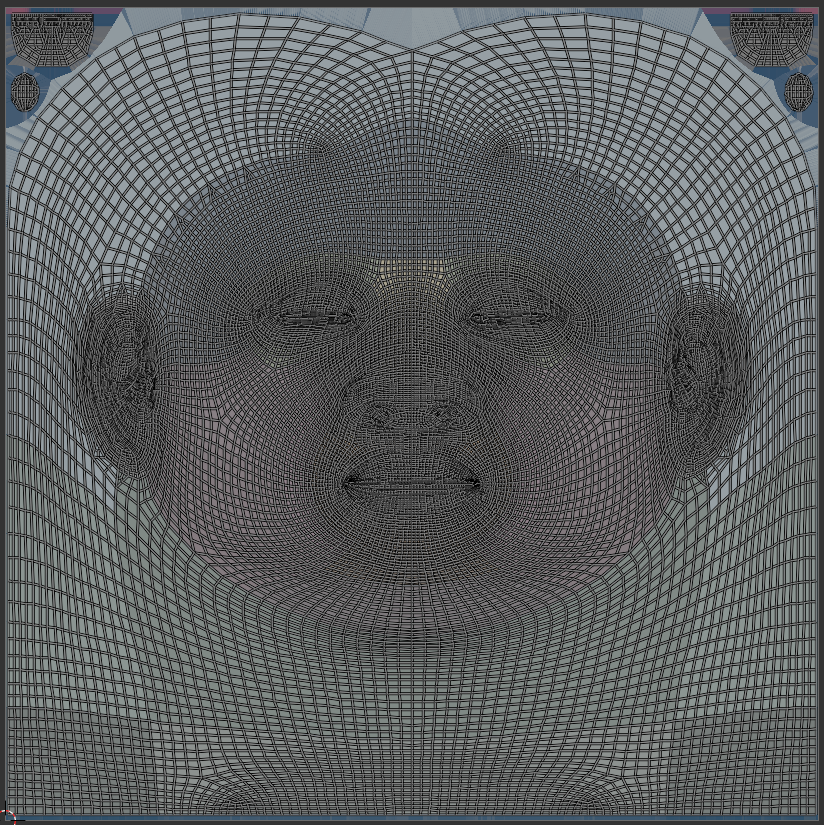
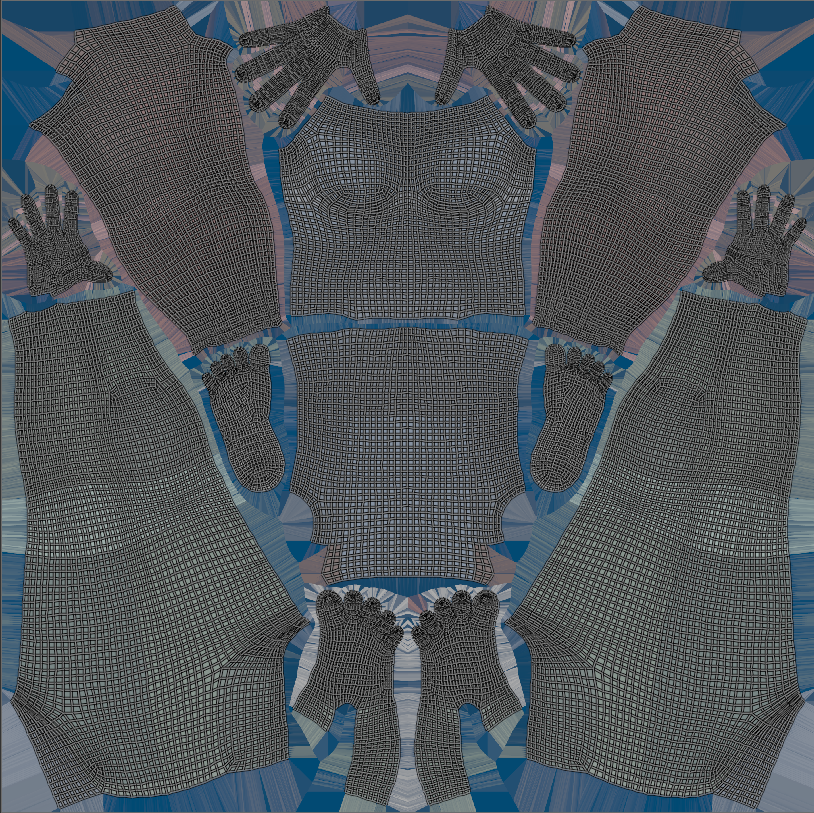
Wrapping preserves that layout because you start from the base MetaHuman head and body meshes and only move their vertices. Never change their vertex count or UVs.
Methods
There are several ways to produce a wrapped, topology-matched head and body. Pick whichever fits your pipeline.
1. Face Form Wrap
A dedicated wrapping tool that is a fast and accurate way to conform the base MetaHuman head and body meshes onto your target scan or sculpt while preserving topology and UVs.
2. Mesh to MetaHuman (Unreal Engine 5.8)
Epic's built-in Mesh to MetaHuman tool fits a MetaHuman topology onto your custom mesh directly in Unreal, then hands it back through MetaHuman Creator. Export the resulting DNA and bring it into Blender.
3. Blender (Proportional Editing, Sculpt, Shrinkwrap)
Wrap entirely in Blender by reshaping a copy of the base MetaHuman head and body:
- Use Proportional Editing to block in the overall shape toward your target.
- Refine with Sculpt brushes for finer detail.
- Systematically add Shrinkwrap modifiers targeting your reference mesh, scoping each to a vertex group so you can conform specific regions (cheeks, brow, jaw) without disturbing the rest. Apply as you go.
You can even combine these methods to achieve your desired result, using free or paid tools as needed.
Convert
Once you have a wrapped head and body mesh, run Convert to DNA.
Tip
Wrapping the character in a neutral position with the mouth slightly open and eyes slightly closed can be ideal for transferring textures or vertex group data. You can then edit the default item in the Raw Editor to close the mouth and fully open the eyes, defining the character's rest pose.